Give your display a name.
Open Moni on your Android player. In the dashboard, choose Screens → Add screen, enter the pairing code, and name your display.
Your player needs to reach your Moni server. MONI
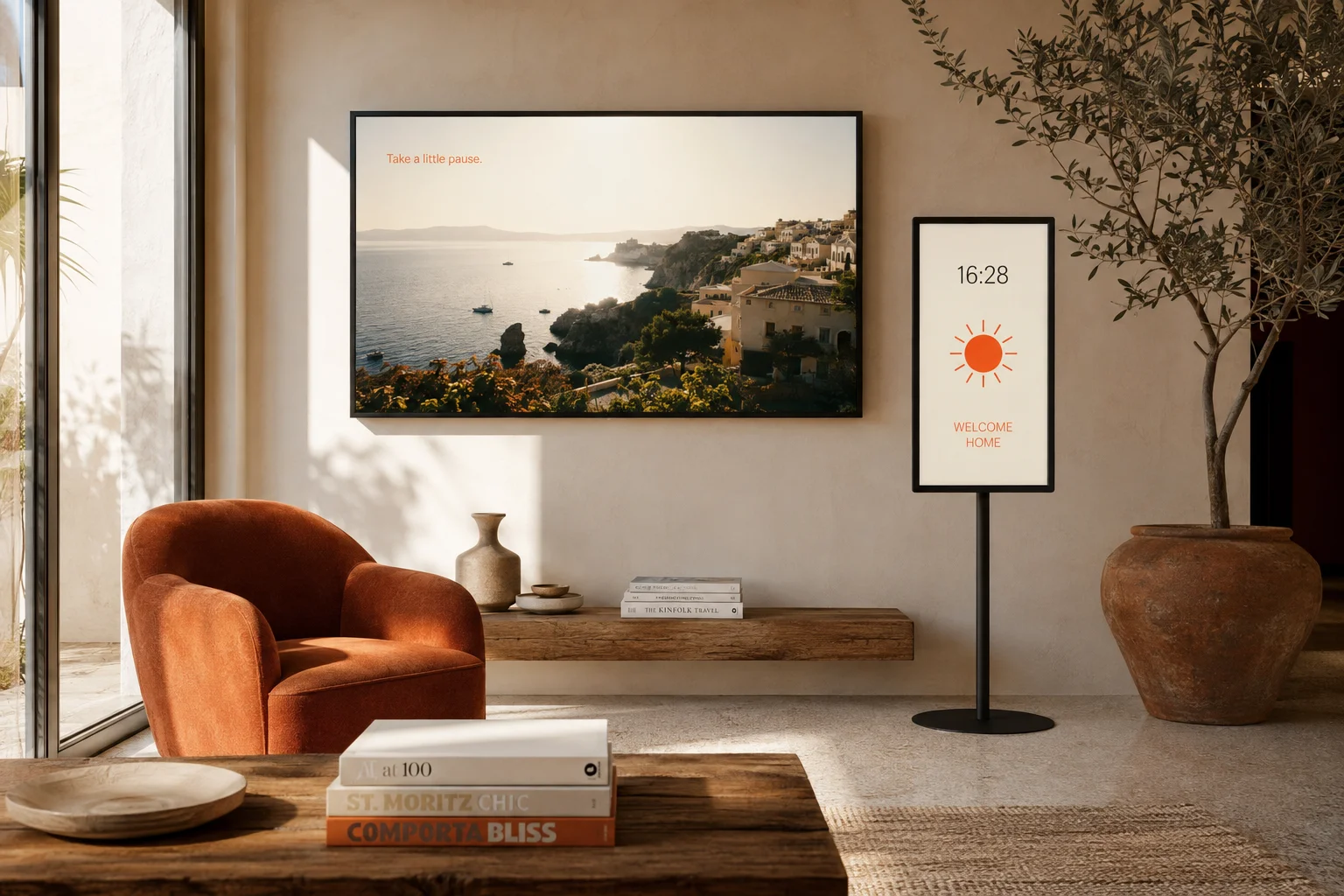
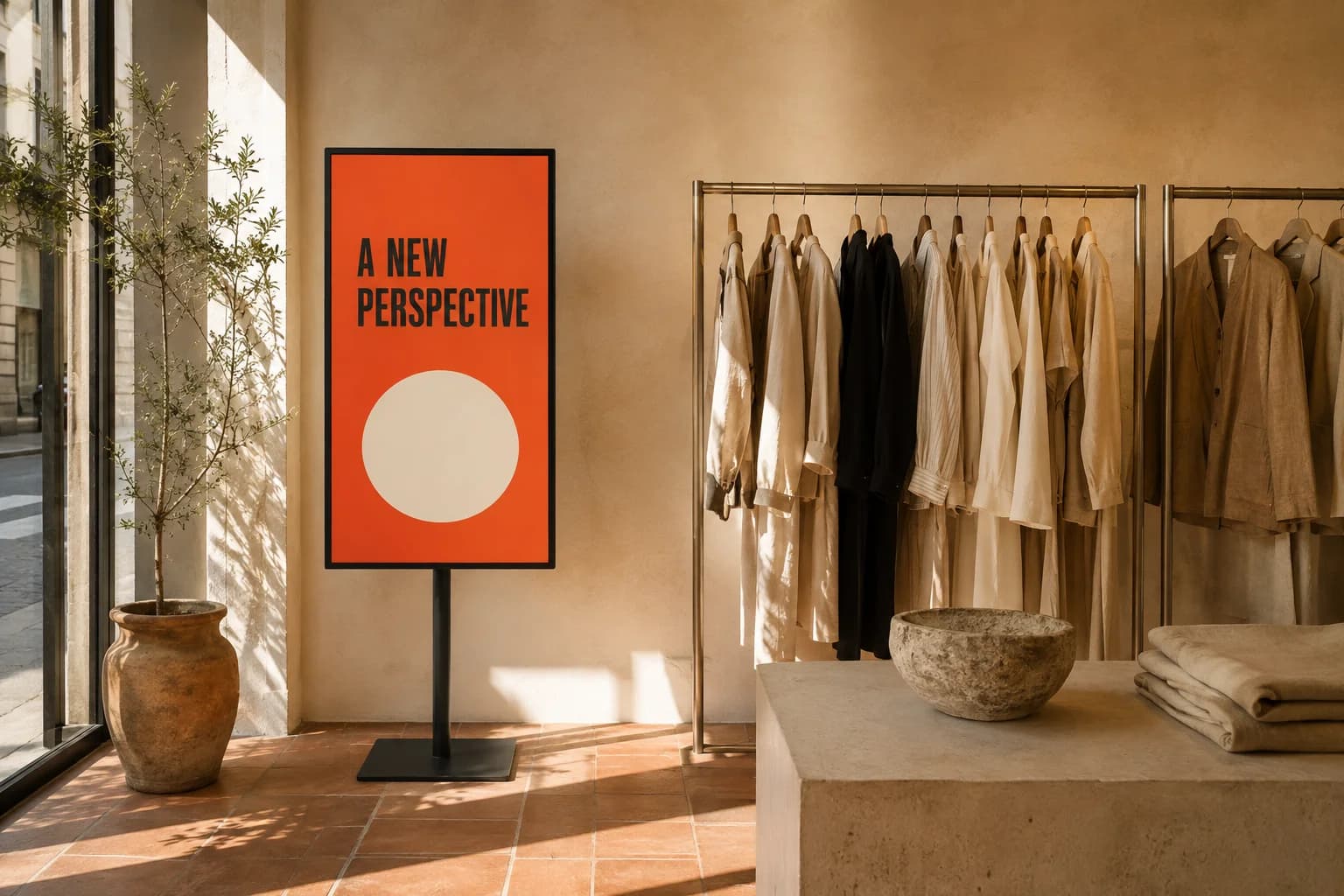
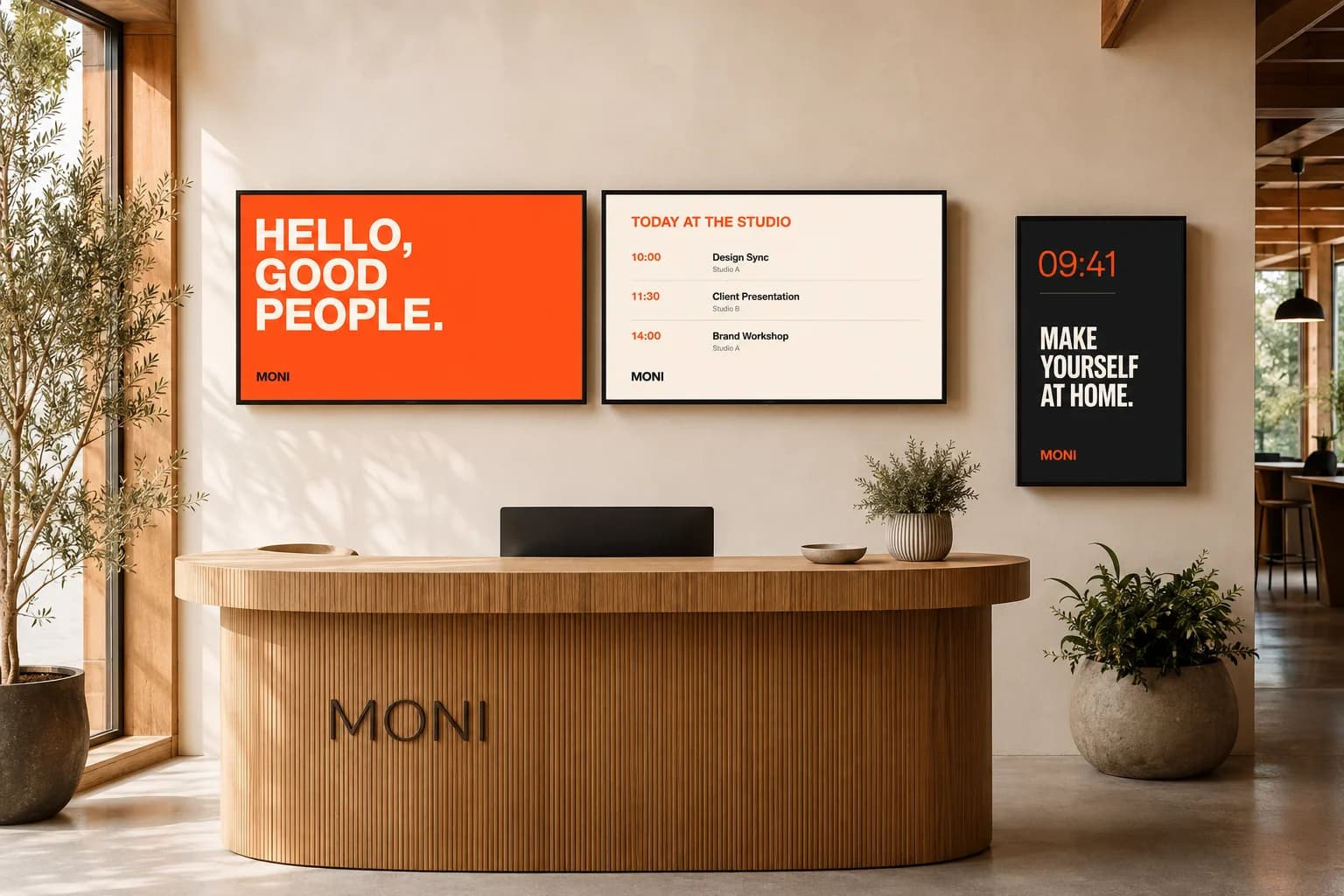
Turn everyday displays into something worth looking up for. Create, schedule, and share—from one simple workspace.
Bring your screens to life See how it works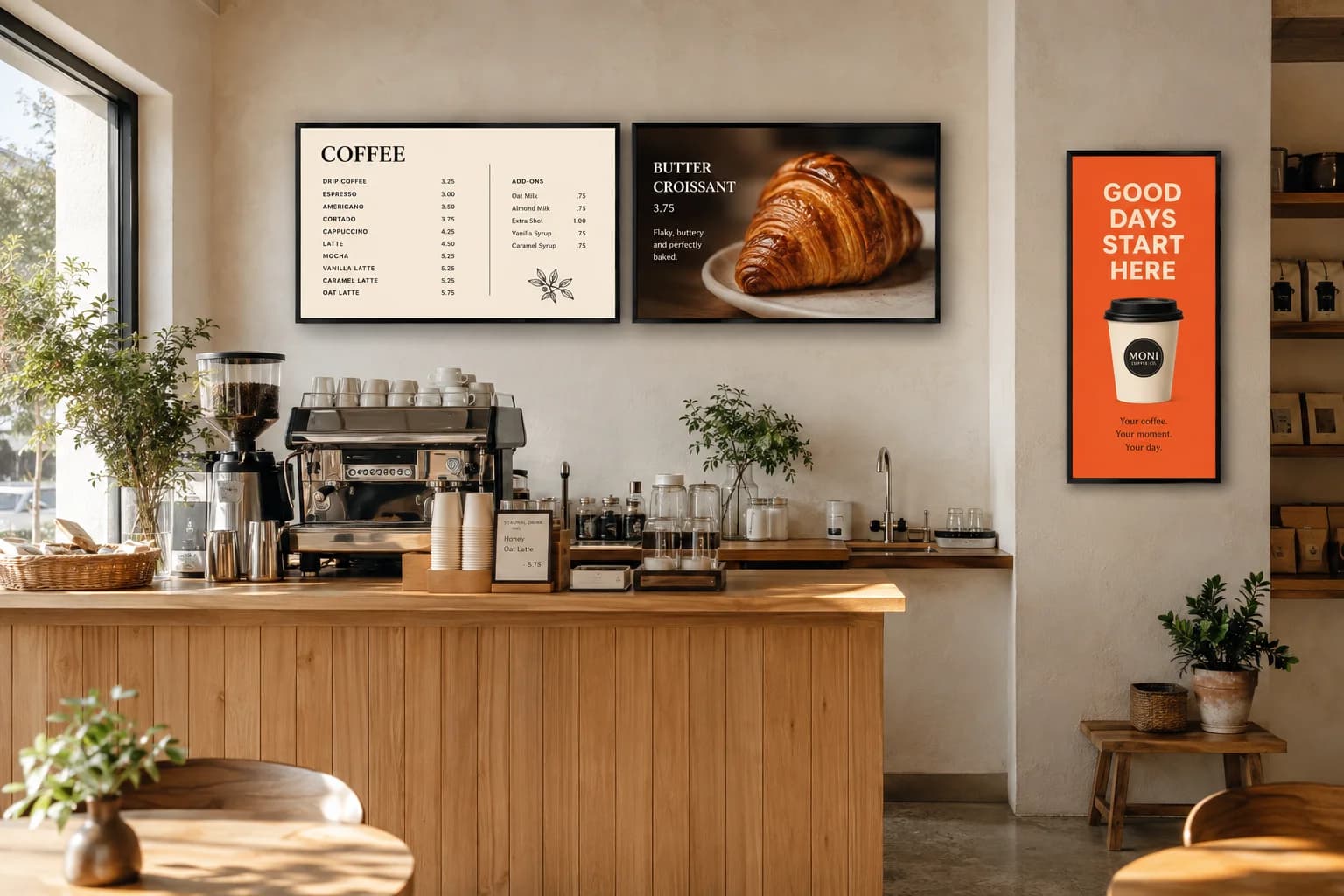
Made for the places
we share.
01 / THE WORKSPACE
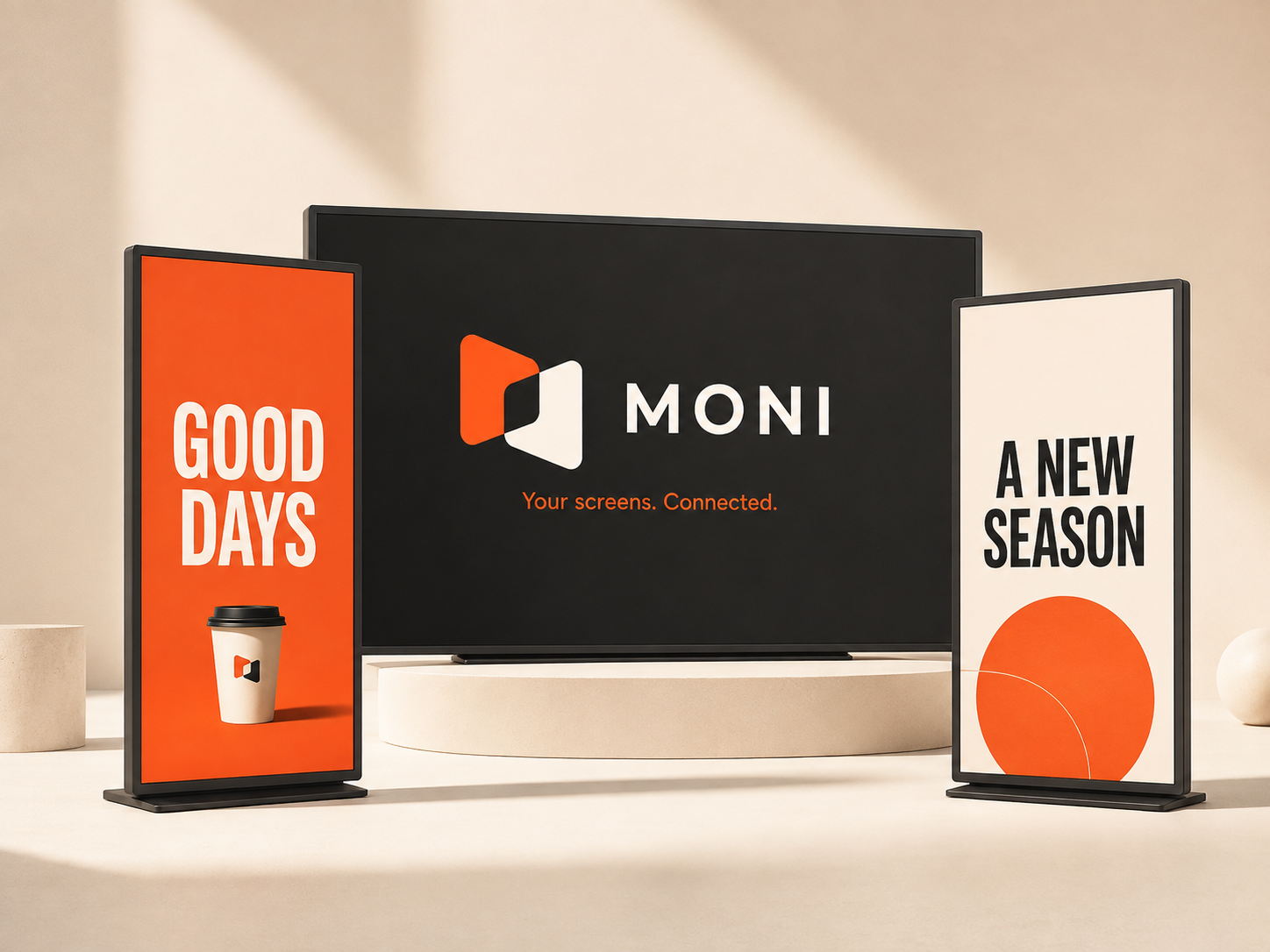
One place for your content, your screens, and whatever comes next. A small update or a whole new look—it’s all within reach.
02 / FROM HELLO TO ON SHOW
Connect your Android player to a display, pair it with your workspace, and choose what to show.
 01 / 04
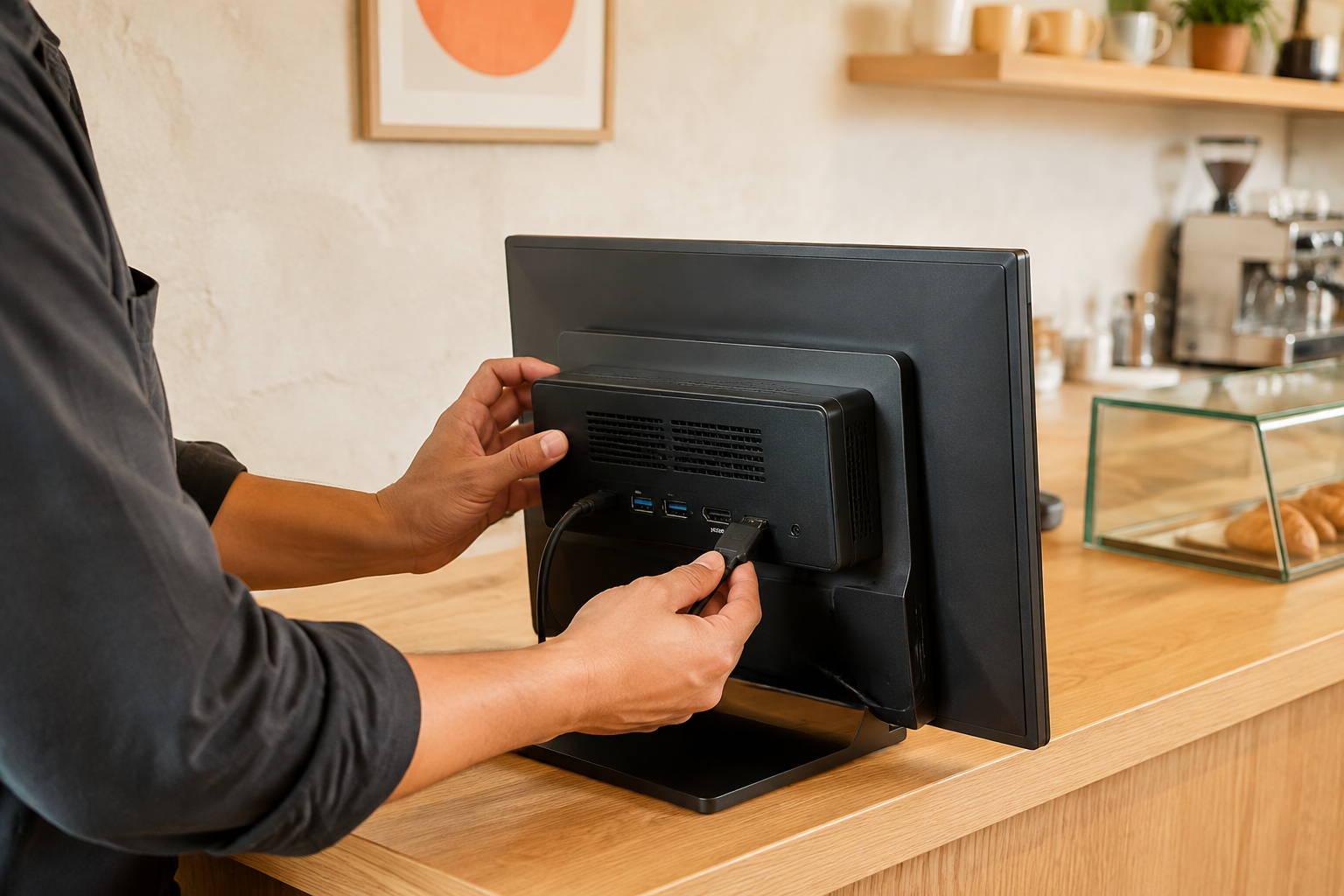
Connect your Android player to the display with HDMI and open Moni.
A WALK THROUGH THE APP
Scroll to follow the journey
Open Moni on your Android player. In the dashboard, choose Screens → Add screen, enter the pairing code, and name your display.
Your player needs to reach your Moni server.Open Media and upload your photos or MP4 videos. Create a slide from a template, or upload from your phone after signing in.
Check the preview against your screen’s orientation.Create a playlist, add your media, and arrange the order. Set durations and preview the flow before you send it to your space.
Use a schedule when your content should change with the day.Assign the playlist to your screen and publish. Watch download and playback status in the dashboard as the player receives your content.
Downloaded content keeps playing if the internet drops.Enter this code in Screens → Add screen
Thoughtful tools for the everyday work behind a great-looking screen.
Mix images, videos, and slides into a playlist. Start with a template or bring your own design.
Schedule your playlists ahead of time, from the breakfast menu to the evening welcome.
Open a secure screen-sharing link, sign in, and upload media from your phone’s library.
Downloaded content keeps playing when the internet drops. Updates resume when you reconnect.
See last seen, download progress, and playback status. Find connection issues in one place.
Arrange displays in a room preview to plan your layout before you put it on the wall.
03 / OUT IN THE WORLD
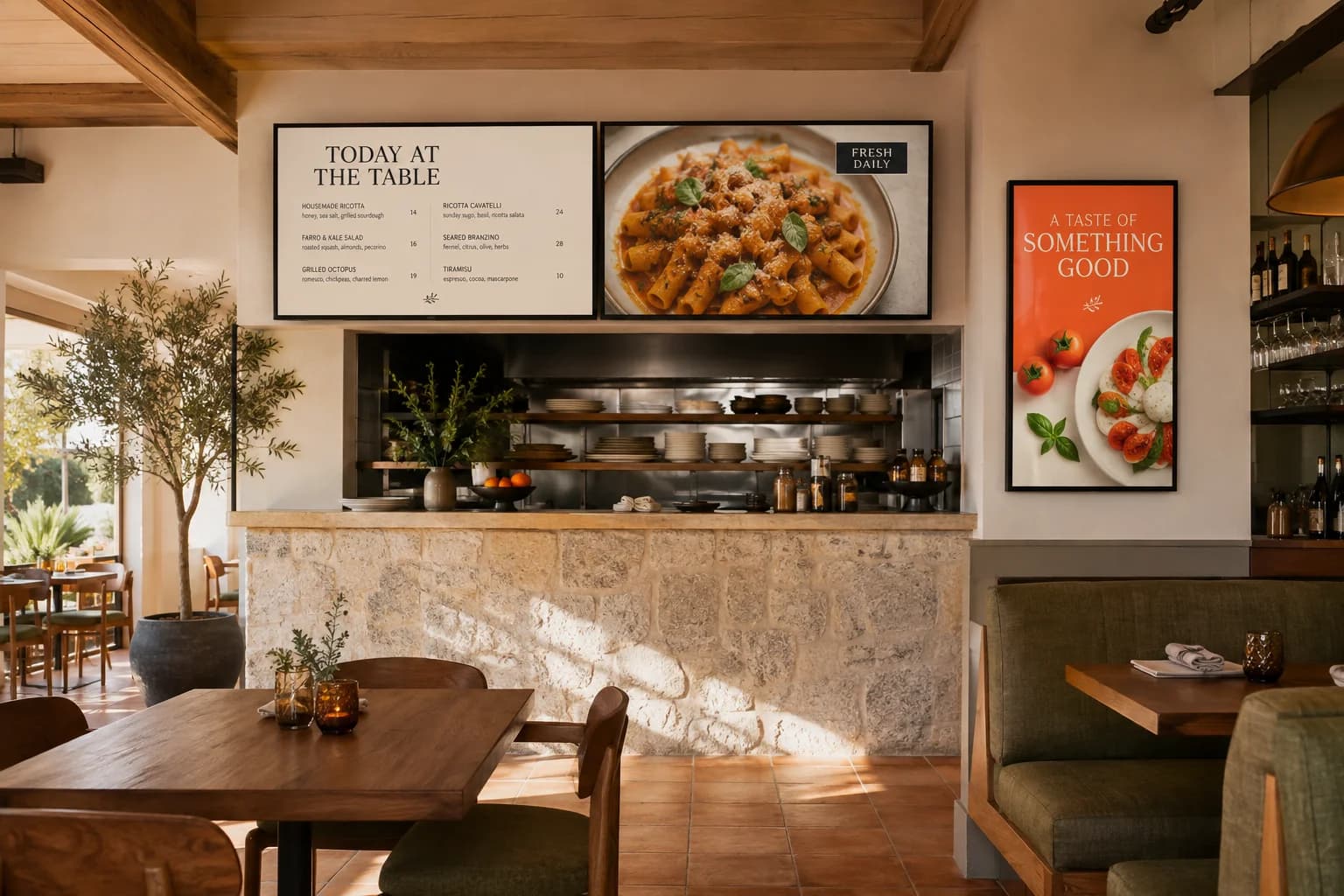
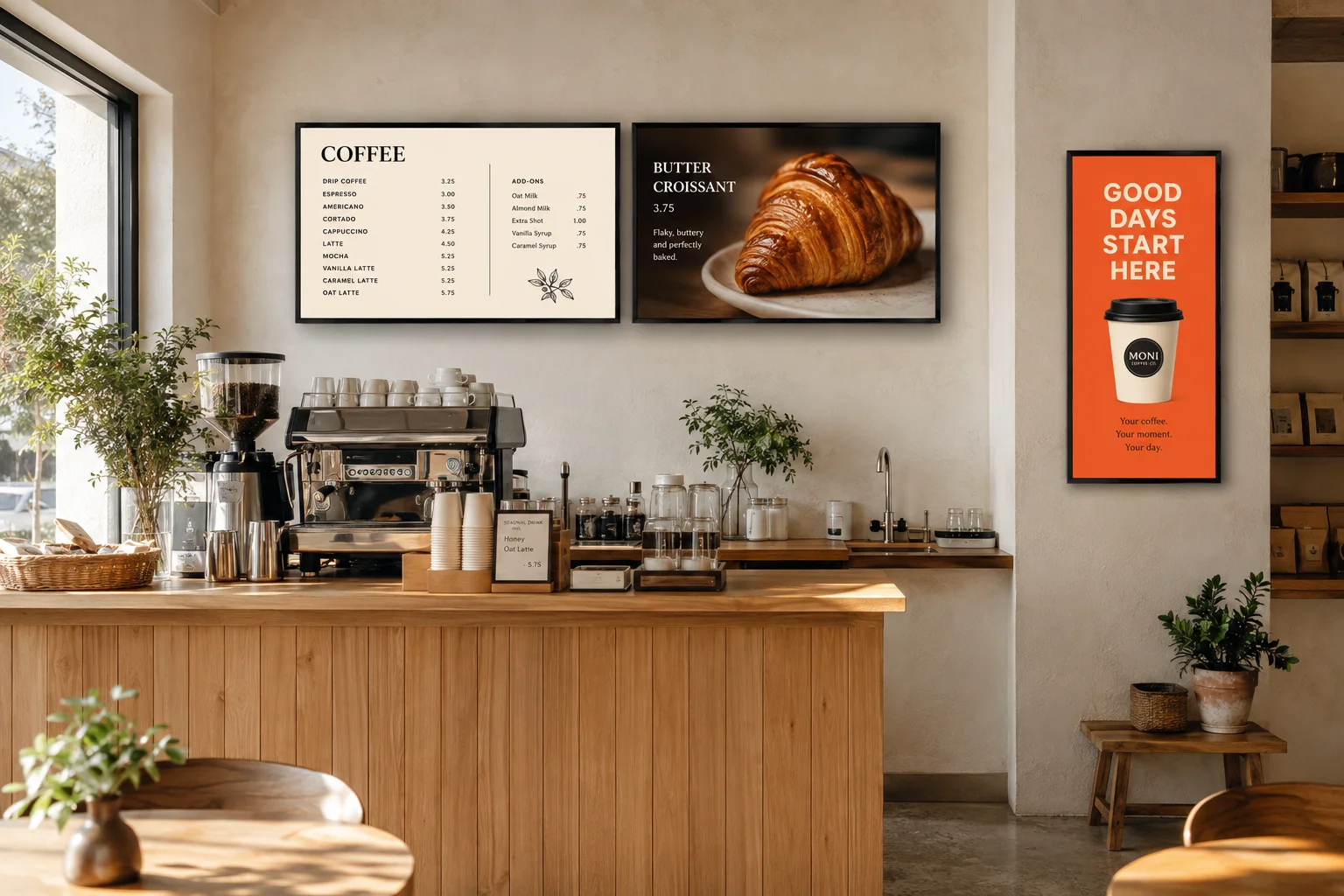
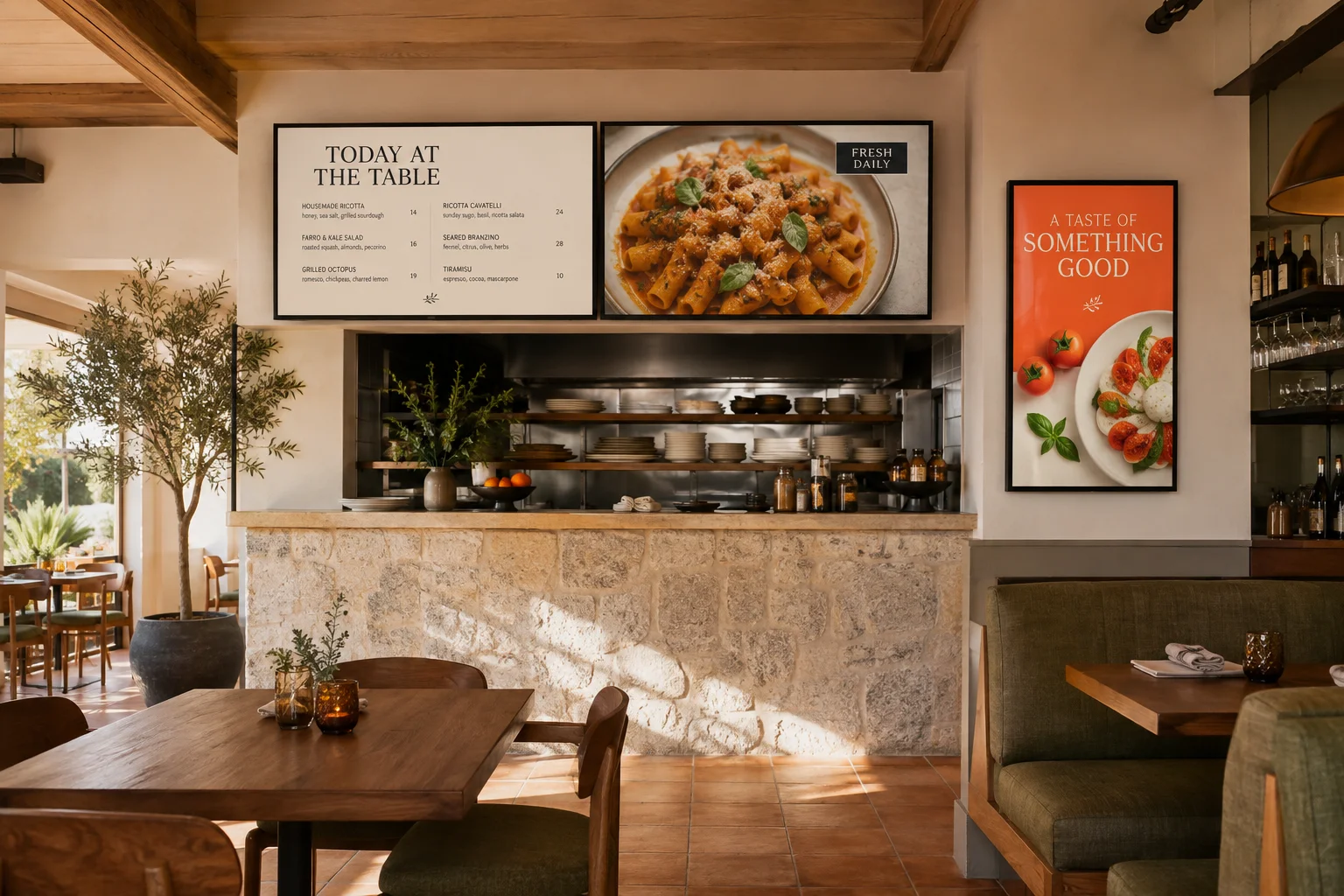
Bring today’s menu, signature dishes, and seasonal specials together. Three displays, one considered experience.
MORE WAYS TO SHOW UP
04 / START SMALL. THINK BIG.
Choose your features. Add screens as you grow.
The essentials for every screen.
More ways to create and share.
Control across your local network.
Demo prices · Excluding tax · No live payments. Local control requires a local server and an eligible license.
A compatible Android device running the Moni player, a display, and access to your Moni server. Open the player and enter its pairing code in your workspace.
Yes. Upload images and MP4 videos, create slides, and organize them into playlists. Preview the content before publishing it to a screen.
Content already downloaded to the player keeps playing. New uploads and remote changes need a connection. Business local control also needs an available local server and a valid offline license.
Yes. The dashboard works in your browser. A screen-sharing link also opens a focused upload journey after you sign in. Your phone must be able to reach the server.
No. It is a layout and assigned-content preview that helps you arrange your displays. It does not provide a camera feed or frame-synchronized video wall.
YOUR SCREENS. CONNECTED.